
The Google Ads Transparency Center is Google’s public ad library: every ad from every verified advertiser across Search, YouTube, Display and Gmail, searchable by name or website, free, no account required. Since it launched in 2023 it has become the fastest way to check competitors’ Google ads, and in 2026 it also reveals which Search Partner sites a Performance Max campaign is leaning on.
This guide walks through how to use it, what each screen tells you, what it will never tell you, and how to turn a search into a competitor analysis. If you are here from the Facebook side, the companion guide is how to see competitors’ Facebook ads.
What the Google Ads Transparency Center is
It lives at adstransparency.google.com. Google built it after the political-ad transparency reports, and expanded it in 2023 to cover all ads from advertisers who have completed advertiser verification, which is now required for almost every account. Each ad stays in the Center for one year after the last day it was shown; election ads stay for seven years and carry spend and impression ranges that commercial ads do not.
People search for a “Google Ads library” because they expect a mirror of the Meta Ads Library. It is close, with two differences that matter: Google indexes by verified advertiser rather than by Page, and it retains ads for a year, where Meta drops ordinary commercial ads the moment they stop outside the EU.
How to see competitors’ Google ads, step by step
Step 1: Search by advertiser name or domain
Type the brand into the search bar. The dropdown lists verified advertisers with their legal name and location; pick the right entity. If nothing sensible appears, search the domain instead (“example.com”), which returns ads from every advertiser account pointing at that website, including regional subsidiaries and agencies running on the brand’s behalf. Large brands often have several.
Step 2: The “About this ad” shortcut
When you see a competitor’s ad live on Google or YouTube, open the three-dot menu and choose About this ad (or My Ad Center). It names the verified advertiser behind the ad and links straight to their Transparency Center page. This is the fastest route when the legal name differs from the brand.
Step 3: Set region, format and date
Three filters sit above the results. Region limits to ads shown in a country; leave it on anywhere for the global view. Format separates text, image and video, which in practice separates Search, Display and YouTube. Date defaults to the last 30 days, with presets for today and the last seven days and, since late 2025, custom ranges. Widen it to a year to see seasonality.
Step 4: Read the ad cards
Each card shows the creative, the format, and the last date it was shown. Click through for the full detail: every headline and description variation for a responsive search ad, the video for YouTube, the regions where it ran, and for Performance Max and Display, the “When and where ads showed” panel, which since 2026 lists individual Search Partner domains. That panel tells you whether a competitor’s PMax spend lands on reputable placements or on long-tail filler sites.
Step 5: Record and compare
The Center has no export, no side-by-side view and no alerts. Copy the headlines, note the landing pages and formats, and keep a sheet per competitor, or use an ad library that does this for you (below).
What you can see, by ad type
| Ad type | What the Center shows | What to look for |
|---|---|---|
| Search (text) | Every headline and description asset, the display URL, the regions, last-shown date | Claims, prices, USPs, sitelink themes, how many assets they rotate |
| YouTube (video) | The video creative, format, regions, last-shown date | Hook in the first five seconds, offer, CTA overlay, length |
| Display (image) | The banner creative and sizes, regions, placements panel | Visual system, offer, whether they run retargeting-style creatives |
| Performance Max | Assets across formats, Search Partner placements | Asset breadth, partner-site quality, funnel stage of the copy |
| Shopping | Not shown | Search the product on Google Shopping directly |
What the Transparency Center will never show you
- Keywords and bids. You see the ad, not the query that triggered it. Infer themes from headlines and landing-page URLs.
- Spend, impressions, clicks, conversions. Published for election ads only.
- Targeting. No audiences, no demographics, no schedules.
- Shopping ads. Product listing ads are not in the Center.
- Unverified advertisers. Rare now, but their ads are not listed under a name.
- Ads older than a year. Retention is twelve months from last shown.
Two sources fill part of the gap. Auction Insights inside your own Google Ads account shows, per campaign or keyword, which advertisers compete with you, their impression share, overlap rate and how often they outrank you; it is the only place you see competitor presence on your keywords. And an ad library such as Sprites adds run length, launch tempo, destination analysis and an estimated spend range calculated from the public data and labelled as an estimate.
A competitor Google ads analysis in six checks
- Headline inventory. List every headline asset across their search ads. The claims that appear in every ad are the ones they have proven; the ones that appear once are tests.
- Offer and price. Do they name a price, a discount, a free trial, a guarantee? An offer in the headline means they compete on it.
- Landing pages. Group ads by destination URL. One page for everything means message testing; many pages means segmented campaigns by product or audience.
- Format spread. Search only, or Search plus YouTube plus Display? Video and Display presence signals budget beyond bottom-funnel capture.
- Seasonality. Set the date range to a year and watch what appears and disappears. Ads that return every quarter are working; ads that vanished after two weeks were not.
- Partner quality. For PMax advertisers, read the Search Partner domains panel. Filler placements suggest they are buying cheap reach; premium placements suggest a brand budget.
Repeat for three competitors and the map of the category is clear: who owns which claim, who segments and who does not, and which angle nobody is running.
Google Ads Transparency Center vs Meta Ads Library
| Google Ads Transparency Center | Meta Ads Library | |
|---|---|---|
| Indexed by | Verified advertiser or domain | Facebook Page |
| Keyword search of ad text | No | Yes, with quote and OR operators |
| Retention | One year after last shown | Active ads only outside the EU; one year in the EU |
| Spend or reach | Election ads only | Impression bucket on every ad; EU reach and targeting |
| Formats | Search, YouTube, Display, Gmail | Feed, Stories, Reels, Messenger, Threads, WhatsApp |
| Placement detail | Search Partner domains (2026) | Platform list |
| Export or alerts | None | None |
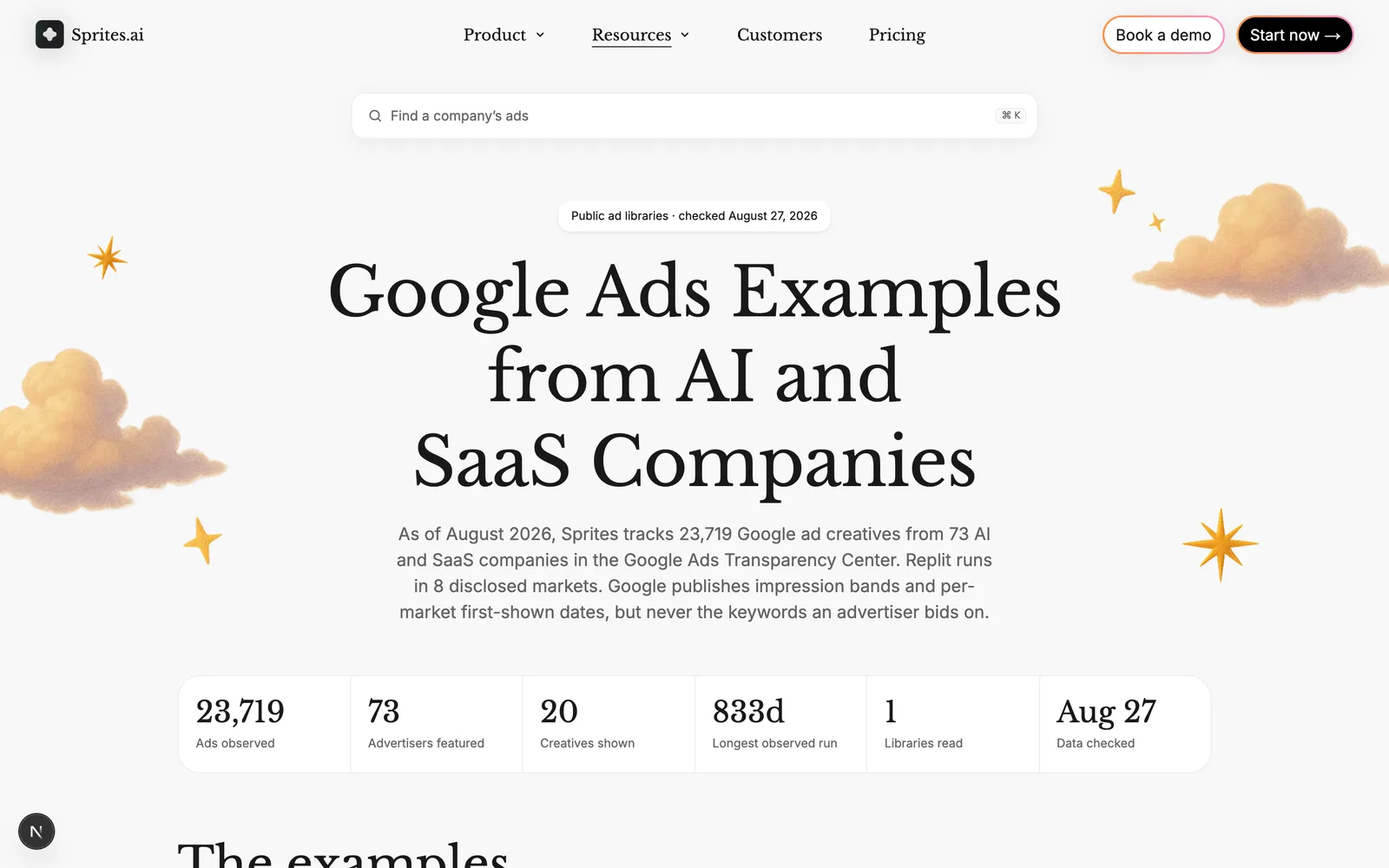
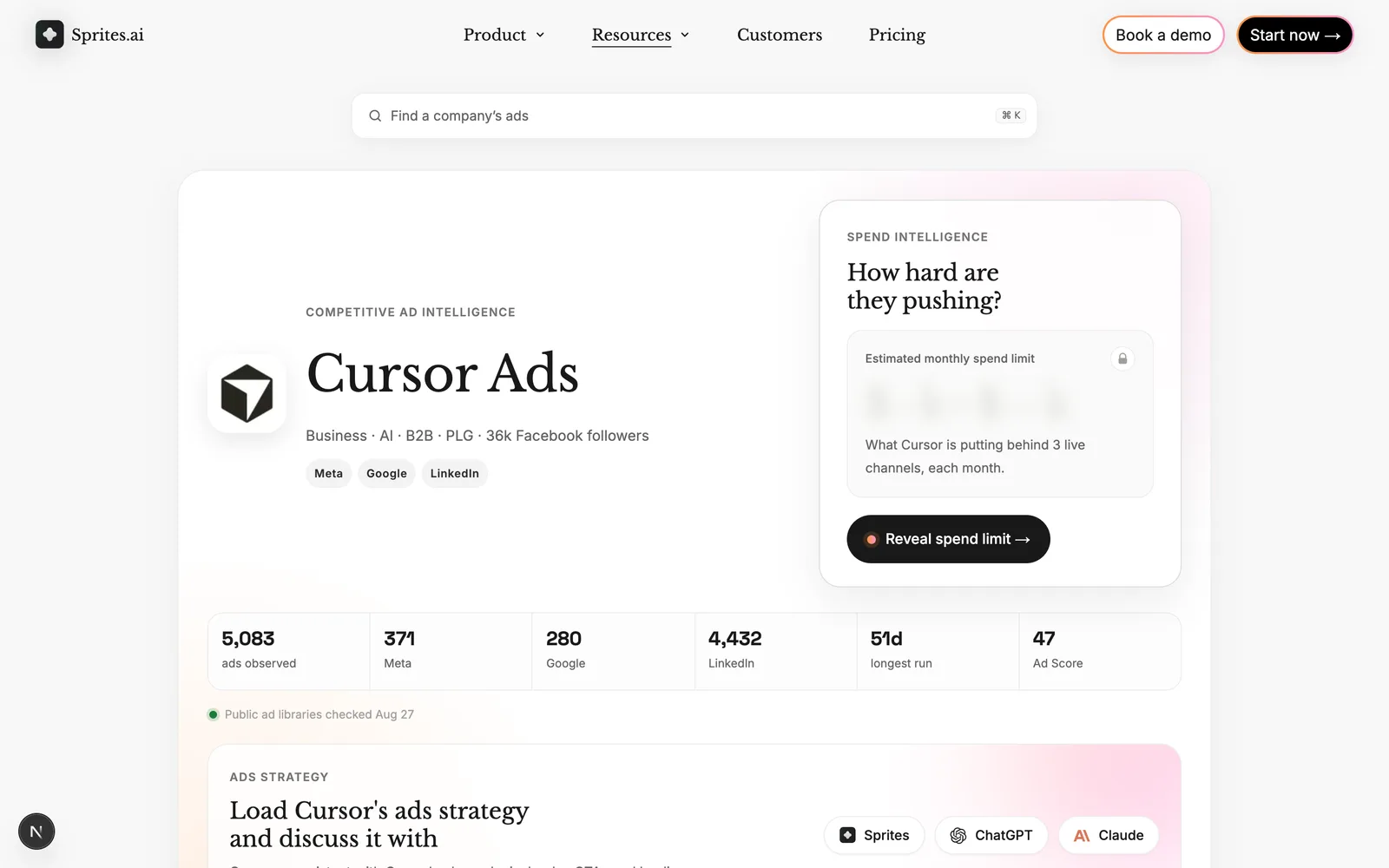
The Sprites Ads Library reads both, plus the LinkedIn Ad Library, into one page per advertiser, so a competitor’s Google search headlines sit next to their Facebook video hooks. See the Google ads examples gallery for what that looks like.
Tools that go further than the Center
- Sprites Ads Library (free): analysed advertiser pages across Google, Meta and LinkedIn, refreshed weekly, with a scheduled competitor analysis in the copilot for anything outside the index.
- Semrush and SpyFu (paid): estimated competitor keywords, ad history and budgets from search-data models. Estimates, but the only route to keyword-level views.
- PowerAdSpy and BigSpy (paid): cross-network ad databases that include Google and YouTube; compared in the best Facebook ad spy tools.
- Meta-side libraries: for the same job on Facebook and Instagram, see the best Facebook Ad Library alternatives.
The same reading applies to search creative: analyze ad creative by sorting on how long each ad has been shown, then categorise the headlines with the ad hook styles taxonomy. Creative analytics runs that loop across Google, Meta and LinkedIn together.
Frequently asked questions
Is there a Google Ads library like the Facebook Ad Library?
Yes. Google calls it the Ads Transparency Center, at adstransparency.google.com. It shows the ads of every verified advertiser across Search, YouTube, Display and Gmail, searchable by advertiser name or website, with filters for format, region and date. It is free and needs no Google account.
How do I see what Google ads my competitors are running?
Open adstransparency.google.com, type the competitor’s brand name or domain, and pick the verified advertiser. Filter by region and format, and set the date range to cover the period you care about. Each ad card shows the creative, the format, the regions it ran in and the last date it was shown. Click any ad for the full detail.
Can I see competitors’ keywords in the Google Ads Transparency Center?
No. The Center shows the ads, not the keywords, bids or targeting behind them. You can infer themes from headlines and landing pages, and Auction Insights inside your own Google Ads account shows which advertisers compete with you on the keywords you bid on. Paid tools such as Semrush and SpyFu estimate competitor keywords from search data.
Does the Google Ads Transparency Center show ad spend?
Only for election ads, which carry spend and impression ranges. For ordinary commercial ads there are no spend, impression, click or conversion figures. Run length, ad volume and regional coverage are the proxies available, and the Sprites Ads Library adds an estimated spend range calculated from public data.
How far back does the Google Ads Transparency Center go?
Ads from verified advertisers stay in the Center for one year after the last day they were shown; election ads stay for seven years. The date filter defaults to the last 30 days, with presets for today and the last seven days, and custom date ranges added in late 2025.
Why can’t I find an advertiser in the Transparency Center?
Three usual reasons. The advertiser is not verified, so its ads are not listed under a name (try the domain instead). The legal advertiser name differs from the brand, in which case use About this ad on any live ad to jump to the right entity. Or the ads ran outside the date range and region you have set.
What is the best way to check competitors’ Google ads regularly?
Bookmark each competitor’s Transparency Center page and check it monthly, or use an ad library that does the reading for you. The Sprites Ads Library keeps one page per advertiser with their Google search headlines, destinations and markets alongside their Meta and LinkedIn ads, and the Sprites copilot can run the comparison on a schedule and report only what changed.
Next steps
Run the six checks above on your top three competitors this week. Then compare what you find with their Meta ads using the Facebook guide, and let Sprites for Google Ads turn the gaps into campaigns, with your approval on every change.